Some spy camera
apps do offer you a small, discrete window with your camera's
perspective in order to make taking the photo easier and less
noticeable, but even this can be a little too obvious, diminishing your
confidence as people pass near you. So to keep your confidence high
while you exploit some poor pedestrian falling over or your friend
showing off their "inspired" dance moves, today I'll show you how to
secretly take a picture without even launching your camera app.
Step 1: Install Quick Camera - Hidden Camera
Quick
Camera is free, but in addition to making it easier to take secret
pictures, it also disables the shutter sound so you don't have to worry
about alerting anyone that you just snapped a pic.
Launch the
application before taking any pictures in order to set it up the way you
want for a particular shot. Within the app, select whether you want the
front or rear-facing camera, and the quality of the photo.
Additionally, the toggles allow you to enable notifications once the
picture is captured, vibration once captured, and the flash (but that's
sort of a giveaway that you're snapping a picture).
Step 3: Take a Picture
To secretly take a
picture without raising any suspicion, access your app drawer and look
for the "Take Photo" app icon. Position yourself and tap the icon to
take a picture. Nothing will launch and no sound will be made. The icon
works as your shutter button, and once the shot is taken, it'll be
available in the notification drawer or the new "Quick Camera" folder in
your gallery app.
By not giving any indication that you're taking a picture, you should
now feel confident no one's going to walk by to ask "what the hell are
you doing?"
- DISCLAIMER - This Is For Educational Purposes Only You Shall Not Use This On Other People Phones Without Permission Under Any Circumstances I'm Not Responsible For Any Eventual Errors And Misbehaving Of Your Devices Files And Tutorials Are Used And Partially Created According My Expirience And Also Collected From Internet & XDA Forums All Regards Are Going To Their Authors
Quote:
If Just Google Ask you For Password (Credentials) - You Can Turn On WIFI Via ADB In Order To Google Accept Your Device Via this Command:
Code:
adb shell svc wifi enable
Requirements:
The Device Needs To Have Usb Debugging Enabled In Case Usb Debugging Isn't Enabled And You Have Recovery,you Can Run The Same Instructions From Recovery For Some Methods Root Is Not Required (Though It Will Be Better If Device Is Rooted)
If None Of This Methods Works For You - Unfortunally You Probably Must Full Wipe Your Device
METHOD I
Solution For Everyone With Recovery (Cwm, Twrp, Xrec,Etc...) Installed:
INSTRUCTIONS:
1. Download this zip Pattern Password Disable(Download from attachments) on to your sdcard (using your PC, as you cant get into your phone, right ) 2. Insert the sdcard into your phone 3. Reboot into recovery mode 4. Flash the zip 5. Reboot 6. Done!
Note : If You See The Gesture Pattern Grid Or Password After Restarting, Don't Worry. Just Try Any Random Pattern Or Password And it Should Unlock.
METHOD 2 Solution For Everyone Without Recovery Installed - ADB :
What You Need: =>A computer running a Linux distro or Windows+Cygwin =>USB cable to connect your phone to the PC =>Adb installed
How to install adb: 1. Open Terminal 2. Type:
Code:
sudo apt-get install android-tools-adb
Hit [Enter] 3. Follow the instructions until everything is installed.
INSTRUCTIONS: 1. Connect you (turned on) Phone to the Computer via USB. 2. Open a terminal window. 3. Type:
Code:
adb devices
adb shell
cd data/system
su
rm *.key
4. Done...Now You Just Have To Reboot.
Note : If You See The Gesture Pattern Grid Or Password After Restarting, Don't Worry. Just Try Any Random Pattern Or Password And it Should Unlock.
METHOD 3 Solution For Everyone Before Lock Accident :
SMS Bypass - Download Link - Install It On Your Device (Download from attachments) This App Allows You To Remotely Bypass Your Phone's Screen Lock By Sending A SMS. It Removes Your Gesture Pattern Or Password After Receiving A Preset Keyword Along With A Secret Code Via SMS. SMS Bypass App Requires Root.
INSTRUCTIONS: 1.First, make sure you give permanent root access to the app. 2.Change the secret code to your preferred choice. The default password is : 1234 3.To reset your screen lock, send the following message from another phone:
Code:
secret_code reset
Example:
Code:
1234 reset
Note 1 : There is a space between your secret code and reset. Also the secret code is case sensitive. Note 2 : There is an option available to change the preset keyword. Default is : reset - Your phone will restart and your lock screen will be reset. Note 3 : If You See The Gesture Pattern Grid Or Password After Restarting, Don't Worry. Just Try Any Random Pattern Or Password And it Should Unlock.
METHOD 4 Solution For Everyone Via Adb - SQL Command :
INSTRUCTIONS: =>Type This Commands Separated In Your Terminal (CMD Prompt) :
Code:
adb shell
cd /data/data/com.android.providers.settings/databases
sqlite3 settings.db
update system set value=0 where name='lock_pattern_autolock';
update system set value=0 where name='lockscreen.lockedoutpermanently';
.quit
=>Now You Just Have To Reboot.
Note : If You See The Gesture Pattern Grid Or Password After Restarting, Don't Worry. Just Try Any Random Pattern Or Password And it Should Unlock.
METHOD 5 Solution For Everyone Via Adb - File Removal :
INSTRUCTIONS: =>Type This Command In Your Terminal (CMD Prompt) :
Code:
adb shell rm /data/system/gesture.key
Note : If You See The Gesture Pattern Grid Or Password After Restarting, Don't Worry. Just Try Any Random Pattern Or Password And it Should Unlock.
METHOD 6 Solution For Everyone With USB Debugging Enabled :
INSTRUCTIONS:
Primary Step for all method:
Download & Extract to anywhere - Bypass Security Hack (Download from attachments)
Open SQLite Database Browser 2.0.exe in SQLite Database Browser.
Run pull settings.db.cmd inside By-pass security Hacks folder to pull out the setting file out of your phone.
Drag settings.db and drop to SQLite Database Browser 2.0.exe program.
Navigate to Browse data tab, At table there, click to list down the selection & selete secure
Instruction To Remove Pattern Lock:
Now, find lock_pattern_autolock, Delete Record
Close & save database
Run push settings.db.cmd and reboot your phone
Instruction To Remove PIN Lock:
Now, Find Or Create lockscreen.password_type, double-click & change it's value to 65536, Apply changes!
Now, find lock_pattern_autolock, Delete Record, If doesn't exist, Ignore
Close & save database
Run push settings.db.cmd and reboot your phone
Instruction To Remove Password Lock:
Now, find lockscreen.password_salt, Delete Record
Now, find lockscreen.password_type, Delete Record
Close & save database
Run push settings.db.cmd and reboot your phone
Note : If You See The Gesture Pattern Grid Or Password After Restarting, Don't Worry. Just Try Any Random Pattern Or Password And it Should Unlock.
METHOD 7 Solution For Everyone With Recovery Installed :
INSTRUCTIONS:
1.Download and Copy Aroma File manager.zip (Download from attachments) to your memory card.
2. Open your recovery (press volume Down + Power button or it can be different according to the phones. Generally the phones who have press able button on the middle they have to press all three buttons. Google for you pattern there are lots)
3. There’ll b an option in recovery called “mount”. Go in that option and then mount all the cache and everything it is there.
4. Then select “update” and select “apply update from SD/external” and select aroma file manger.zip file that you downloaded using above QR code above.
5. After Flashing or updating, the aroma file manger will open. Use volume keys for up/down and power button 2 select like you use to get into recovery.
6. In aroma File manager , Go to menu , which is located in bottom strip and then select Settings.
7. Go to bottom n select “mount all partition in startup ” then exit from aroma file manger.
8. Now after exit , re-update that aroma file again and it will open again.
9. Go to data >> and then System. Then find ‘gesture.key’ (for pattern lock) and ’password.key’ (for password lock) then long touch on gesture.key or password.key and sum option will be prompted , choose delete and delete that file and restart.
Note : If You See The Gesture Pattern Grid Or Password After Restarting, Don't Worry. Just Try Any Random Pattern Or Password And it Should Unlock.
Here we go again! Earlier this week, Apple released iOS 7.0.2 just to fix some Lockscreen bugs in iOS 7 and but a researcher has found a new Lockscreen bug in new iOS 7.0.2.
This new Lockscreen bug is found by Dany Lisiansky, and he uploaded a proof of concept video on YouTube with the complete step by step guide.
Unlike the previous bugs it will not expose your Email, Photos, Facebook and Twitter but allows attackers to access your phone call history, voicemails and entire list of contacts.
It would be easy for someone who knows you or your love partner or your business partner to obtain your phone and call themselves from it to take advantage of this trick and they may only gain access to the Phone app.
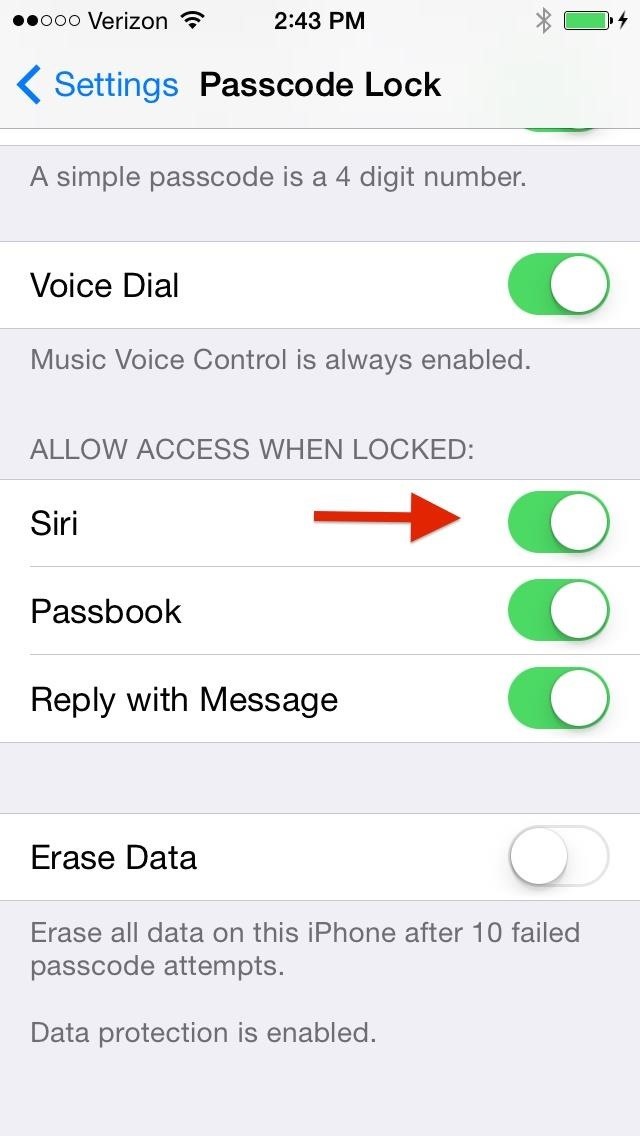
Fixing this bug is pretty simple, Disable the Siri in Lockscreen by navigating to “Settings –> General –> Passcode –> Siri” and disable it there.
Also read that how an Iranian group defeated the iPhone Fingerprinting scanner Touch ID again, which allows them to unlock an iPhone device with multiple Fingerprints.
While many of us are battling with the slow data access and still awaiting the roll-out of 4G Networks, the International Telecommunication Union (ITU) is already looking forward to the next generation of telecommunication network technology.
Yes folks, we are talking about the future. 5G standard for mobile networking.
Since 5G standard is currently in the definition stage, the ITU has announced a timeline for a name, demonstration, and distribution.
During a conference held in San Diego from June 10th to 18th, 12 member delegation sat to draw up the specifications to be established for the upcoming 5G network standard and to set a roadmap as to how the objective will be achieved.
What's The Standard Data Speed For 5G Network?
When I talk about data speed, the ITU has decided that 5G compliant networks will have to provide apeak data speed of up to 20Gbps, which means it's 20 times faster than the peak speed specification (1Gbps) of 4G LTE networks.
For actual user speeds, this simply means a customer should receive an average Internet speed of between 100 and 1000 Mbps, which is somewhere between 10 and 100 fold increase over the typical 4G LTE speed of 10Mbps.
So, soon in future, you may be able to download a full-length High Definition movie to your mobile phone in just a matter of seconds. Moreover, video chats with friends will be so realistic that you will feel like you can touch the other person right through your phones screen.
Though 20 Gbps has been set as a standard data speed for 5G networks, security researchers from the University of Surrey achieved Record-Breaking data speeds with 5G wireless data connections back in February, achieving an incredible One Terabit per second (1Tbps) speed.
5G For IoT Devices
The specification for 5G networks also serves future internet-of-things (IoT) technologies. 5G will have to provide up to 100 Mbps average data transmission speed to over 1 Million IoT devices within the radius of 1 Km2.
"The vision for the 5G network and its global standardization schedule has been agreed based on our suggestion," a Korean Ministry official told the Korea Times. "This has shown that Korea is leading the world's mobile communications technology and related policies."
When Will We Get 5G?
The 5G network technology, which is still in the development stage, is expected to roll out between 2018 and 2020.
As for the formal naming scheme, 5G Networks will be called IMT-2020, similar to IMT-2000 for 3G Networks and IMT-Advanced for 4G Networks.
The final details for the 5G standard for mobile networking will be confirmed in October this year, following approval from the 193 International Telecommunication Union (ITU) member countries.
Although an early demonstration of 5G network speeds will be given at the 2018 PyeongChang Winter Olympic Games, South Korea, according to Korean officials.
All of us have seen 12
function keys (F1-F12) available on your keyboard, but only a few
might be using it in different applications for making their jobs
simpler. These function keys perform different functions in different
applications and can be used in combination with other keys. I
collected many such uses of function keys from different sites and
magazines and I am putting here. Although I have tested each
combination, but then also If you find any combination that is not
working then do comment below. Moreover, If you know any code other
than these, then also you are requested to put here in comments.
F1
If you are in an
application and you press this key, you will get its help file.
Suppose you are in Windows Explorer or Desktop, you press this key
you will get Windows Help file. Suppose you are in an application,
and you want windows help file, press windows key + F1, you
will get windows help file.
F1 + in combination
with other keys:
SHIFT
+ F1 = Start context-sensitive help or reveal formatting
(What is this? Help)
ALT
+ F1 = Go to the next field
ALT + SHIFT + F1 =
Go to the previous field
CTRL + ALT + F1 =
Display Microsoft system information
CTRL + SHIFT + F1
= Change the font of paragraph
F2
Basically used for
renaming files. Select any file and press f2.
ALT + SHIFT + F2 =
Choose the save command (file menu)
CTRL + ALT + F2 =
Choose the open command (file menu)
F3
While you are working in
Windows Explorer or on Desktop, you press this key you will get the
‘Find Files’ window. You need not go to Start > find. While
you are working in MS Word (make your selection) and press ALT +
F3 = Create an auto text entry box appears.
SHIFT + F3 =
Change the case of the letters.
F4
Open address bar in
Internet Explorer or Windows explorer.
ALT + F4:-
Close selected window. When
no window is open then it will show shut down screen.
In MS Word, F4 =
Repeat the last action
SHIFT + F4 =
Repeat a Find or Go To action
CTRL + F4 = Close
the Window
ALT + F4 = Quit MS
word (works in all application)
F5
In any browser, it will
refresh the page. On desktop, refreshes the deskop. In MS word,
pressing F5 will show “Find and Replace” window.
SHIFT + F5 = Move
to previous revision
CTRL + F5 =
Restore the document window size
CTRL + SHIFT + F5 =
Edit a bookmark
ALT + F5 = Quit
the word program
F6
To move the cursor in the
structure of IE or WE you can use this key. When you are in MS Word,
if press this key, you will go to the next pane or frame.
SHIFT + F6 = Go to
the previous pane or frame.
CTRL + F6 = Go to
the next window.
CTRL + SHIFT + F6 =
Go to the previous window
F7
No use in Windows. But in
MS Word if you press this key, you will get spelling command.
SHIFT + F7 =
Choose the Thesaurus command
CTRL + F7 = Choose
the move command
CTRL + SHIFT + F7 =
Update linked information in a word source document
ALT + F7 = Find
the next misspelling or grammatical error. The ‘Check Spelling as
you Type check box must be selected. ( Tools menu, options dialog
box, spelling and grammar tab)
F8
When you press this key
while booting the system, you will get the start up menu. You may
enter Safe Mode. When you are in MS Word, press this key to extend
selection.
SHIFT + F8 =
Shrink the selection
CTRL + F8 = Choose
the size command (document control menu)
CTRL + SHIFT + F8 =
Extend a selection or block (then press an arrow key)
ALT + F8 = Run a
macro
F9
No use in windows but in
MS Word it will update the selected fields.
SHIFT + F9 =
Switch between a field code and its result.
CTRL + F9 = Insert
an empty field.
CTRL + SHIFT + F9 =
Unlink a field
ALT + F9 = Switch
between all field codes and their results
ALT + SHIFT + F9 =
Run Go Button or Macro button from the field that displays the field
results.
F10
No use in windows but in
MS Word it will activate the menu bar.
SHIFT + F10 =
Display a shortcut menu.
CTRL + F10 =
Maximize the document window.
CTRL + SHIFT + F10 =
Activate the ruler.
ALT + F10 =
Maximize the program window
F11
Pressing F11 will make
any browser enter in ‘Full Screen’ mode. In MS Word, if you press
this key you will go to the next field.
SHIFT + F11 = Go
to the previous field.
CTRL + F11 = Lock
a field
CTRL + SHIFT + F11 =
Unlock a field
ALT + F11 =
Display Microsoft Visual Basic Code.
ALT + SHIFT+ F11 =
Display Microsoft Visual Studio Code.
F12
No use in windows. But in
MS Word you it acts as Save As command (File Menu).
SHIFT + F12 =
Choose the Save command (File menu).
Just now, you have see
that F7, F9, F10 and F12 have no use in Windows. But you can
assign some task to these buttons. You should assign those
programs which are most oftenly used by you.
Steps to do it:
1. Locate the shortcut of
that program. If it doesn’t have, create one.
2. Right click on the
shortcut and select the properties from the context menu.
3. Select the shortcut
tab.
4. In the window click
the mouse in the shortcut, and press the function key to which you
want to assign this program.
5. You will find the
function key name in the box.
6. Click on apply and
close the box.
Whenever you want to open
this program you press this function key.
Back in 2010, iOS developer Daniel Amitay developed a camera security app for iPhones that used an unlock screen almost identical to that of the iPhone.
The app was removed in mid-2011 (though, it eventually reappeared in early-2013, still available in the iOS App Store today), and before its initial demise, Amitay recorded the passwords anonymously that users typed in, and these were the results:
These ten iPhone passcodes make up 15% of the 200,000
passcodes that his application recorded. The most popular code was
"1234", which almost 9,000 people used. The rest of the codes are either
very simple ("0000"), create a pattern ("2580"), or in the case of
"5683", make up a word (LOVE).
These results are staggering,
because according to this study, these ten codes are used by 1 out of
every 7 iPhone users. Merely attempting these 10 passcodes gives you a
pretty high chance of getting into someone's iPhone, even in newer iOS 7
devices.
#1. Using Brute Force to Bypass the iPhone Lock Screen
Aside from the 10 common passcodes above, your chances can exponentially increase if you know the owner of the iPhone well.
Many
people use 4-digit pins that they're familiar with: birthdays,
anniversaries, addresses, the last 4 of their social security numbers,
and even the last 4 digits of their own phone number. iPhone users
unlock their cell phones dozens of times a day, making a simple and
memorable passcode beneficial.
Add to that oily finger smudges on the screen and there's a pretty good chance you'll get passed the lock screen security.
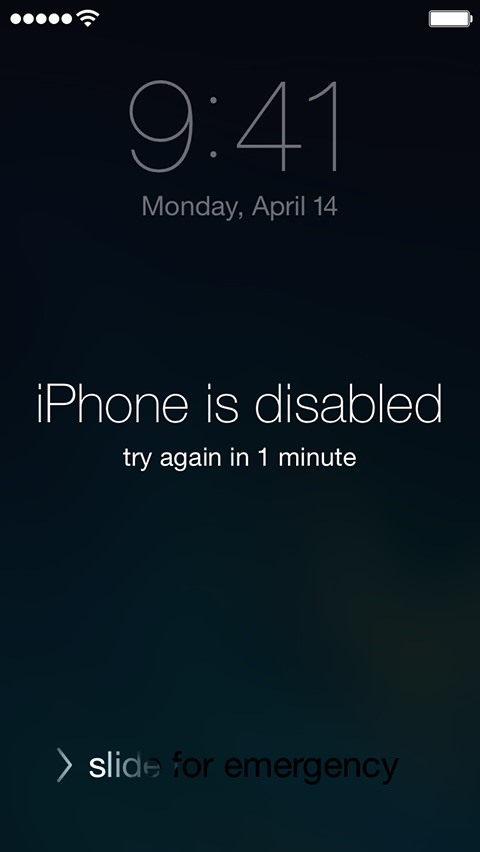
You have 6 tries
to access the phone before you'll see the "disabled" warning, and then a
few more before the phone is completely disable, so that gives plenty
of chances for a good brute-forcer to gain access.
Even if you see the disabled screen, you still can hack into it. Scroll down to the Completely Resetting the iPhone with iTunes section for more info.
Protecting Yourself from Brute-Forcers
Much like any PIN (e.g. debit cards), you need to make it hard to guess by thieves.
Don't choose any of the ten passcodes listed above.
Don't use any important dates or any other numbers that can be linked back to you.
Steer away from passcodes that make shapes, like "1397" or "7139" (a square).
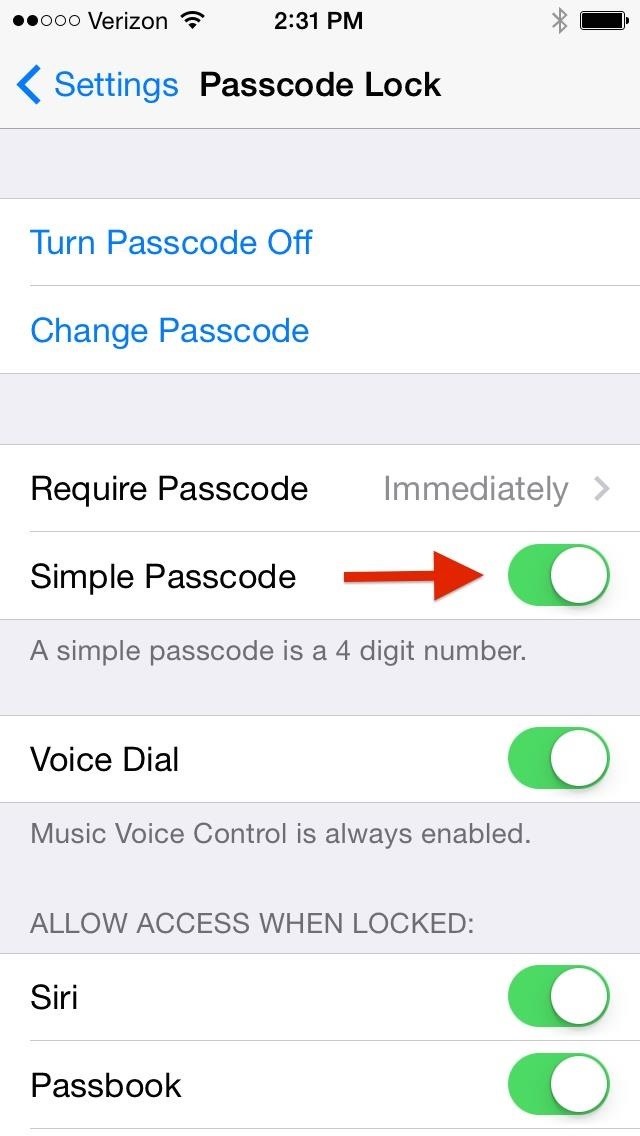
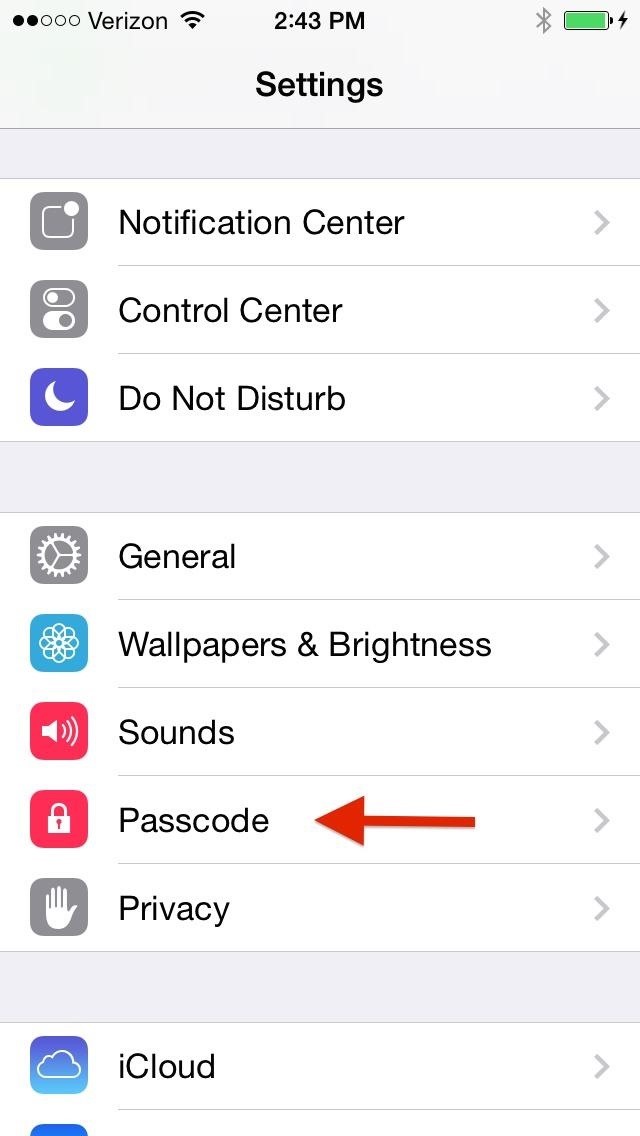
Instead of an easy 4-digit number, choose an alphanumeric code. Go to Settings -> Passcode and enter in your current PIN. Then disable Simple Passcode and set an alphanumeric passcode.
For help coming up with better passwords and codes, check out one of the many guides over on Tech Pr0n, Power Byte (the precursor to Null Byte), or InterNoobs.
#2. Using Siri to Bypass the iPhone Lock Screen
You can use Siri to bypass any code on the iPhone 4S, 5, 5C, or 5S (if Touch ID is disable), but only to a certain extent, and only if the user has allowed Siri access when the phone is locked.
If so, you can just press down on the Home button and ask
Siri to make a phone call, send a text, and look through notes. Simple
stuff. You can't use Siri for things like looking through email,
contacts, or the internet.
Protecting Yourself from Siri's Flaws
You can protect yourself from this by deactivating Siri while the phone is locked. Do this by going to Settings -> Passcode and disabling Siri from the lock screen.
#3. Completely Resetting the iPhone with iTunes
Resetting your iPhone
can bypass the passcode, but will delete everything on the phone. This
can come in handy if you forget your passcode and have everything backed
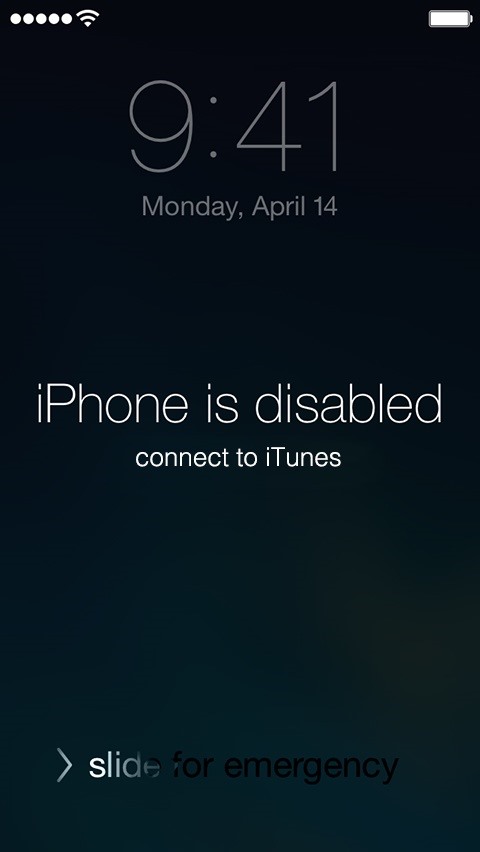
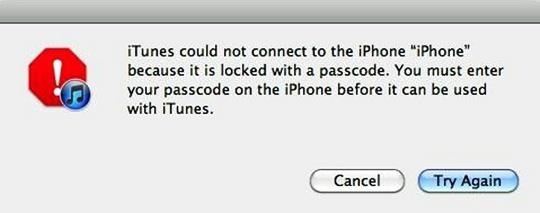
up on your iTunes. So, if you get a message like this when connecting
the device to iTunes...
Press
and hold the Home button, and while holding the Home button in, hurry
up and connect your iPhone to your computer using the USB cord.
Continuing holding the Home button until the "Connect to iTunes" screen pops up.
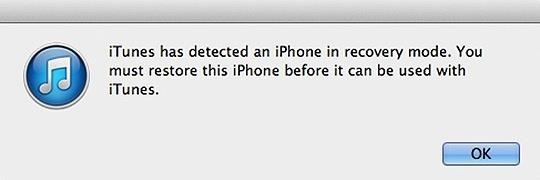
iTunes will give you the recovery mode alert.
Click "OK" and restore the device.
This will take off the passcode, but will delete everything on the phone. Make sure to back up your iPhone at least once beforehand, or it will wipe to factory settings.
Protecting Yourself from Clever iTunes Restorers
It's tough to protect yourself from a hard reset, especially if your phone is stolen. What you can do is to make sure that Find My iPhone
is turned on. That way you cannot only track where the iPhone is, but
also remotely delete all the information before someone has a chance to
bypass the passcode, granted they don't just turn the device off and
sell it for parts.
#4. Tricking iCloud with a Fake Server
An anonymous hacker by the name of AquaXetine
found an exploit in Apple's iCloud system that lets anyone unlock a
lost or stolen iPhone running iOS 7 or above, and Apple has yet to fix
it.
This hack, available at the doulCi website
(iCloud (almost) spelled backwards), appears to change your DNS for the
connection to iCloud so their server can intercept the Activation Lock
request, and then responds with the proper message to unlock the device.
So far, the hackers claim that over 15,000 devices have been unlocked using this technique.
Protecting Yourself from doulCi
Unfortunately, there's not much you can do here. We just have to wait for Apple to fix this insane oversight, and hope that the kill-switch legislation gets approved nationwide; if the device is essentially destroyed, then no one will want to steal it.
#5. Using Passcode-Hacking Apps
You can unlock an older iPhone using redsn0w, which also jailbreaks the device without deleting anything. This article has a video that shows how to install redsn0w on any iPhone still using iOS 5, while this one
will show you how to do it on iOS 6 devices. It bypasses the code and
doesn't delete any of the information stored on the iPhone. This could
potentially also work with the evasi0n jailbreak for iOS 7 devices, as well.
You can also use a program called Gecko iPhone Kit (for iOS 5), which can be downloaded here,
but most devices are using at least iOS 6 by now. This will actually
give you the code and doesn't jailbreak or delete anything from the
iPhone. Below is a video tutorial of this process. https://www.youtube.com/watch?feature=player_embedded&v=wY7Sc7e0sGI
Protecting Yourself from Password-Hacking Apps
Again, not much you can do here. If it works for them, awesome, because it was about time you updated to a new iPhone anyway.
Have you found another way to gain access to the lock screen on your iPhone? Let me know.
Hi friends, This is an awesome trick for those who love to download
youtube videos at all the places, even at their workplace. There, they
don't have to download and install any additional software for
downloading the youtube video.
Follow these steps:
Open desired video in youtube.
For example: https://www.youtube.com/watch?v=KNhp5EnR86Q
Insert 'ss' before youtube in the given link. So above link will become https://www.ssyoutube.com/watch?v=KNhp5EnR86Q or ssyoutube.com/watch?v=KNhp5EnR86Q
After editing the URL, hit Enter. You will be navigated to a page where you will find links to download the video.
Hi friends, In previous post I've told you about how to hack your friend's whatsapp to read their conversation.
In this post, I'll tell you how can you use WhatsApp without using your
mobile number, i.e. WhatsApp without using any number. Friends, you
might be knowing that Facebook has launched web version of the WhatsApp
currently for the chrome browser which is becoming very popular day by day.
For messaging anyone without using any number, do the following steps:
Steps:
Uninstall WhatsApp from your Android phone.
Download and install WhatsApp again.
Block all messaging services on your phone. Keeping your phone to flight mode will automatically block all messaging services.
Now
open WhatsApp and Enter your number. In such case WhatsApp will accept
numbers, but will not be able to send any verification message.
WhatsApp verification is not yet done, so users will not be able to use it.
Now WhatsApp wil ask you for alternate method of verification. Click on 'Verify through SMS' option and provide your email address. Press Send button and within 2 second, press Cancel button. This will stop the authorization process.
Hello friends! I am going to tell you a magic that will surprise you and your friends. What they will
see is this: you are at the Google homepage, and you casually ask someone to
watch the Google logo. Then, you move two of your fingers to completely
cover
the “o”s in the Google logo. When you remove your fingers, to much surprise,
the letters “o” will be missing from the logo. Now you ask your friend to move
her fingers over the missing “o”s. After your friend removes the fingers, the
logo will be complete again!
The trick here?
It’s not really the Google homepage you and your friend are looking at – it’s a fake page (www.darkartsmedia.com/Google.html). And when you click on the page, the letters of the logo will
disappear after five seconds.
Clicking again will make them reappear after five more seconds.
So when you move your fingers to cover the Google logo, simply click anywhere on the page, and wait a bit before you remove your fingers… and when your friend covers the letters, you click again. (A third click, by the way, will change the page to an
actual Google homepage so you can perform searches to “prove” the page is real.)
Hi friends, you must have seen that facebook gives
you different option to control your privacy settings, on your
statuses, posts and even on friend list. If a friend has made their friend-list hidden (visibility set to "Only Me") then you can't check their friends, as I've done. But now, a new Free Chrome extension "Facebook Friends Mapper" can reveal all friends of such users.
How to use Facebook Friends Mapper Chrome extension?
Creating a visual basic script is very easy and doesn’t require any
special programs. Though there are programs you can use to write more
highly advanced scripts, most programmers and people who dabble in
writing scripts just use Microsoft’s Notepad.
Let’s start the process by opening Notepad. After you have opened
Notepad all you need to do is type in the following code or simply copy
and paste it into the notepad window. In order to change what your
script makes the computer say, simply replace the section that says “The
geeks shall inherit the earth” with whatever you want to hear.
dim speechobject
set speechobject=createobject("sapi.spvoice")
speechobject.speak "The geeks shall inherit the earth"
After you have successfully entered the text you wish to hear, just press “File,” and click on the “Save As…” option.
Find a place where you want to save the image. For this example, I am
saving it to an empty folder in the Downloads directory. The important
thing you need to do is give it a name that ends with .vbs. This will
tell the computer that you are not saving a plain text file; rather, you
are saving a VBScript. We will name this sample “Geek test.vbs” as
shown below.
Now you can go ahead and close the notepad and navigate to the folder
where you saved the VBScript.
You will notice that the icon is not the
normal TXT icon. It is a small blue scroll on a white backdrop. Double
click on this icon to launch your single use script and listen to your
text. Congratulations, you’ve just created your first script.
Now, to get the hang of it, try to create a few more scripts with any
text you want to hear. Alternatively, you can right click on the
VBScript and select the “Open with…” option then choose notepad to edit
the text within the same file.
Text to Speech Script
Now that you know how to write a single use script and have probably
played with it a few times, you may be getting a bit bored. That’s why
we are going to kick it up a notch.
The next thing we will learn is how to create a script that is
slightly more advanced than the single use script. This will create a
dialog box that you can type text into and have it read back to you by
your PC.
Start by opening up your notepad again and entering this script or copy and pasting it into the notepad window.
 Dim message, sapi
 message=InputBox("What shall I say, your Geekness?","I speak for you.")
 Set sapi=CreateObject("sapi.spvoice")
 sapi.Speak message
After the code has been entered, simply save the file as “Text to
Speech.vbs” as shown earlier to finalize the script. Once it has been
saved, navigate to the location where it is, and double click on it. You
will notice that window is called “I speak for you.” and the prompt to
enter text to be vocalized is “What shall I say, your Geekiness?” You
can always alter these to say anything you want.
For now, let us enter “The geeks shall inherit the earth” then press
the “OK” button to run the script and hear your text out loud.
Greetings VBScript Script
This is getting pretty fun, but your computer still isn’t interacting
with you very much. Now we will try another simple script that takes
into account the time of day as well as the appropriate response for the
time of day. This script will read your computer’s time and, based on
that, it will greet you in a certain way.
Start by opening your notepad and inserting this short script. You
can replace the section that has the greetings of the day with any
phrase you want to hear as well as replace Geekmeister with your own
name.
Set Sapi = Wscript.CreateObject("SAPI.SpVoice")
 dim str
 if hour(time) < 12 then
 Sapi.speak "Good Morning Geekmeister "
 else
 if hour(time) > 12 then
 if hour(time) > 16 then
 Sapi.speak "Good evening Geekmeister "
 else
 Sapi.speak "Good afternoon Geekmeister "
 end if
 end if
 end if
Now you can save the text document as a VBS file. Once you have done
that, go to the folder where it is saved and double click on it. Based
on the time that your computer shows, it will either say “Good morning,
good afternoon or good evening Geekmeister.”
The script tells it that if the clock reads anything before 12, it is
morning, and that anything after 12 is afternoon; however, it also has a
clause that says even if it is after 12, as long as the time is past
16:00 (4 pm) it becomes evening.
Time of Day VBScript Script
If you would like to get a little bit more advanced and receive the time, you can create a new notepad and enter this script.
The script may look complicated, but it is essentially telling your
computer what to say and how to say it based on the time that is shown
on your computer’s clock. You can always replace the “The current time
is” with any introduction for the time that you want.
Set Sapi = Wscript.CreateObject("SAPI.SpVoice")
 Sapi.speak "The current time is"
if hour(time) > 12 then
 Sapi.speak hour(time)-12
 else
 if hour(time) = 0 then
 Sapi.speak "12"
 else
 Sapi.speak hour(time)
 end if
 end if
if minute(time) < 10 then
 Sapi.speak "o"
 if minute(time) < 1 then
 Sapi.speak "clock"
 else
 Sapi.speak minute(time)
 end if
 else
 Sapi.speak minute(time)
 end if
if hour(time) > 12 then
 Sapi.speak "P.M."
 else
 if hour(time) = 0 then
 if minute(time) = 0 then
 Sapi.speak "Midnight"
 else
 Sapi.speak "A.M."
 end if
 else
 if hour(time) = 12 then
 if minute(time) = 0 then
 Sapi.speak "Noon"
 else
 Sapi.speak "P.M."
 end if
 else
 Sapi.speak "A.M."
 end if
 end if
 end if
Now you just need to save the file as a VBScript as you did in the
previous steps and then navigate to that folder. If everything went
well, you should be able to double click on it and hear the computer
tell you the time.
Startup Greeting
Now that you know how to make your computer greet you and tell you
the time, how cool would it be if the computer would do that when you
turn on the computer. It is actually very easy to do if you just combine
the two scripts and put them in the right place.
Start by opening up Microsoft notepad and copying this code into the
window. It is simply a copy of both codes combined for you. Remember
that you can change the greeting to “What’s up dude, Hello Master,
Greetings your almighty highness,” or anything you want your computer to
say to you.
Set Sapi = Wscript.CreateObject("SAPI.SpVoice")
 dim str
 if hour(time) < 12 then
 Sapi.speak "Good Morning Geekmeister "
 else
 if hour(time) > 12 then
 if hour(time) > 16 then
 Sapi.speak "Good evening Geekmeister "
 else
 Sapi.speak "Good afternoon Geekmeister "
 end if
 end if
 end if
 Sapi.speak "The current time is"
if hour(time) > 12 then
 Sapi.speak hour(time)-12
 else
 if hour(time) = 0 then
 Sapi.speak "12"
 else
 Sapi.speak hour(time)
 end if
 end if
if minute(time) < 10 then
 Sapi.speak "o"
 if minute(time) < 1 then
 Sapi.speak "clock"
 else
 Sapi.speak minute(time)
 end if
 else
 Sapi.speak minute(time)
 end if
if hour(time) > 12 then
 Sapi.speak "P.M."
 else
 if hour(time) = 0 then
 if minute(time) = 0 then
 Sapi.speak "Midnight"
 else
 Sapi.speak "A.M."
 end if
 else
 if hour(time) = 12 then
 if minute(time) = 0 then
 Sapi.speak "Noon"
 else
 Sapi.speak "P.M."
 end if
 else
 Sapi.speak "A.M."
 end if
 end if
 end if
Once you have copied this entire code exactly as it is, into notepad,
go ahead and save it as “Startup greeting.vbs”. It can also be called
anything you want, but for the purposes of this demonstration, it is
easier if we’re all on the same page. Now that it has been saved, you
can double click on the VBScript file to hear it greet you and tell you
the time.
If you want it to play when you turn on your computer, like Jarvis
from Iron Man, simply select the file and drag it with your mouse down
to the “Start button.” Without releasing your mouse move it onto “All
Programs” then find the “Startup” folder and release your mouse button.
If, for some reason this does not work for you, you can also manually
navigate to the startup folder. You will first go to the folder where
your “Startup greeting.vbs” is saved and copy it.
The next step is to type the following path into the top of any Explorer
window and press “Enter”. You will just need to change USERNAME with
the name you use for your computer account.
Once you are in the startup folder, just paste the vbs file and you
are good to go. Now, the next time you start your computer and log in,
it should automatically greet you and inform you of what time it is.
If you had any trouble creating any of the scripts, they are all free to download by using these links.
To secretly take a picture without raising any suspicion, access your app drawer and look for the "Take Photo" app icon. Position yourself and tap the icon to take a picture. Nothing will launch and no sound will be made. The icon works as your shutter button, and once the shot is taken, it'll be available in the notification drawer or the new "Quick Camera" folder in your gallery app.